
Set up Tavala in five minutes
Add your first wallet, record your first expense and read What's Left. You do not need an account, and every step works offline.
Two things get Tavala going: one wallet and one entry. After that, Home shows What's Left, the balance of the wallets you spend from. Setup needs no account and no connection. For the bigger picture, see what Tavala is and what it does.
Add your first wallet and your first expense
-
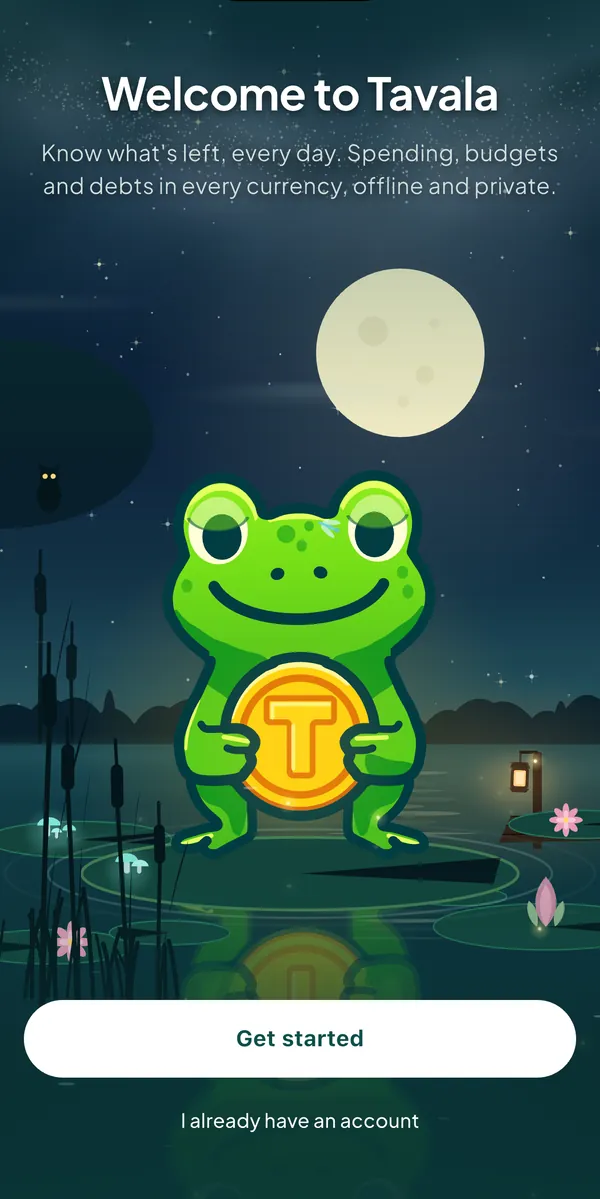
Open Tavala. On the welcome screen, tap Get started (click it on a Mac or in a browser).
-
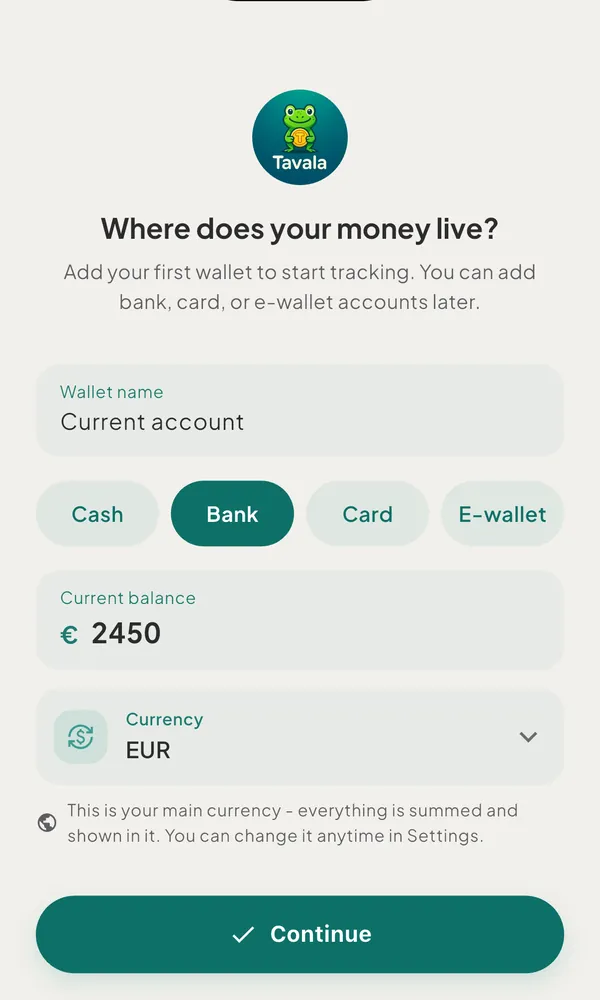
On "Where does your money live?", describe the wallet:
- Wallet name: optional. Left empty, the wallet is named after its type.
- The type: Cash, Bank, Card or E-wallet. Cash is selected to begin with.
- Current balance: what the wallet holds today, such as
250.00. Left empty, it counts as 0. - Currency: starts as the currency of your device's region. This becomes your main currency, the one everything is added up in.
-
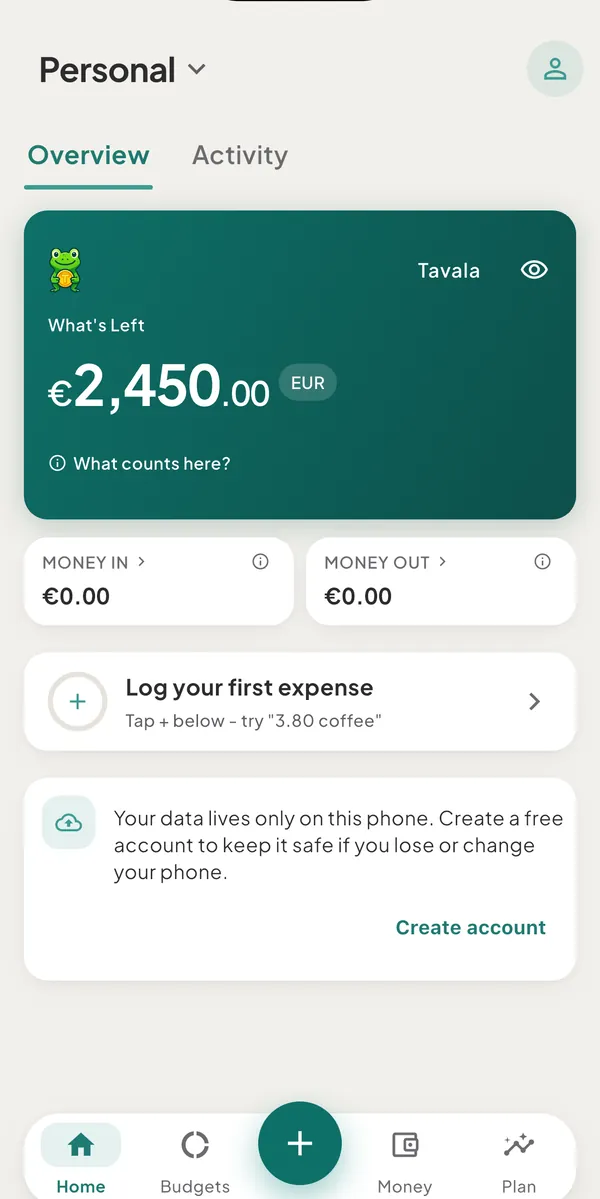
Tap Continue. Home opens, and What's Left shows the balance you entered.
-
Open the capture bar:
- On a phone, tap the round + in the middle of the bottom bar.
- On an iPad or a Mac, tap or click + at the top of the rail, or Add transaction in the sidebar.
- Before your first entry, the Home card Log your first expense opens it too.
-
Type
coffee 4.80and tap the arrow on the right. The entry is saved and the bar closes. -
Look at Home. What's Left is 4.80 lower, and a line under the figure reads "€4.80 out this month" (with your own currency symbol). Tap that line to open "What the numbers mean". The entry is at the top of HomeActivity.
What to do next
- Add a second wallet, such as a bank account or a wallet in another currency. See add a wallet.
- Set a monthly limit on the Budgets tab. See set a monthly budget.
- Add rent or a subscription as a bill. See add a bill or a recurring payment.
- Learn what each figure on Home counts in What's Left, Money in, Money out and Spending.
- Learn where everything is in find your way around the app.
- Back up your data with an account. See create an account.
Good to know
- An empty balance is allowed. If the balance you typed is wrong, fix it later with Update balance. See update a balance that does not match.
- Your main currency can change later, in SettingsMoneyMain currency. A wallet's own currency cannot change after you create it. See choose or change your main currency.
- If you close the app before saving the wallet, the welcome screen shows again the next time you open it.
- The free plan holds 2 currencies per space. Your first wallet's currency counts as one. See free and Tavala Plus compared.
- You already have an account? Tap I already have an account on the welcome screen, or Already have an account? Sign in on the wallet screen. They show only while you are signed out and sync is available. See sign in on another device.
- Without an account, your data stays on this device with no backup. See use Tavala without an account.
Was this helpful?
No opens an email to support with this page’s address. Nothing is recorded here.