
Account, sync and devices
Create an account, sign in on another device, use Tavala offline, on the web, on an iPad or a Mac.
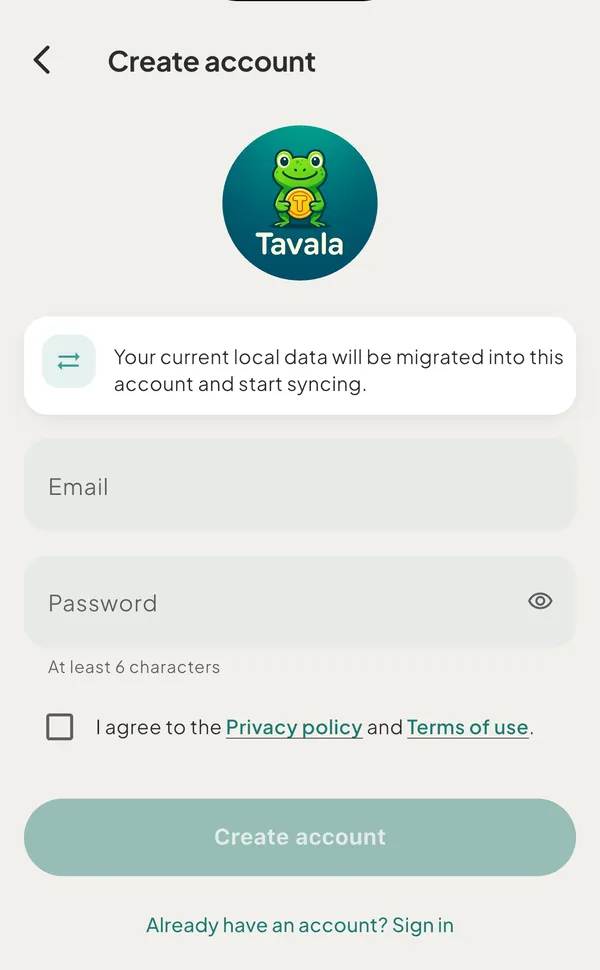
- Create an account to back up and syncCreate a free Tavala account with an email and a password, confirm it with an 8-digit emailed code, and your data is backed up and syncing.
- Sign in on another deviceInstall Tavala on the new device, tap I already have an account and sign in with your email and password. Your data downloads and syncs from there.
- How sync and offline workTavala keeps a full copy of your data on every device, so it works offline. With an account, changes upload when you are online and reach your other devices.
- Devices on the free planThe free plan syncs one device at a time and lets you move syncing to another device 3 times in 30 days. Tavala Plus syncs every device.
- Use Tavala in a browserOpen app.tavala.io to use the same Tavala app in a browser. Sign in to sync with your phone, or try it as a guest. This page lists what a browser does not have.
- Tavala on iPad and MacTavala on iPad and Mac is the same app with a side rail or sidebar, a menu bar and shortcuts. See where things sit and what differs from the iPhone.
- Add the home screen widgetThe Today's spending widget shows what you spent today and this month, and one tap opens Add transaction. It is available on iPhone, iPad and Mac.
- Get the latest versionHow Tavala updates on iPhone, iPad, Android, Mac and the web, where to see the version you have, and where to read what changed in each release.
- Reset or change your passwordTavala has no change-password screen. Forgot password does both jobs: it emails an 8-digit code, you set a new password and you are signed in.
- Sign outSign out from Settings. Your data stays in your account and returns when you sign in; this device is cleared. Tavala warns you if changes have not synced.
Still need help?
Write to support@tavala.io and a person replies. Say which device you are on, the app version and whether you are signed in, and what you did just before it happened. What to include, and how to send it from the app.