
Record spending in another currency
Type the amount with its currency, like taxi 1200 MKD. Tavala converts it into the wallet's currency and your main currency, and keeps both amounts.
On this page
You can record spending in any currency, whatever currency the wallet is in. Type the amount with its currency and Tavala converts it into the wallet's currency, and into your main currency for your totals. It keeps the amount you typed and both converted amounts on the entry.
Record it in the capture bar
- Open the capture bar: tap the round + in the bottom bar, or press Command-N (Ctrl-N on Windows and Android) on an iPad, a Mac or the web.
- Type the amount with its currency, as a symbol or a code:
taxi 1200 MKD,€12.50 lunchorlunch 12.50 USD. - Look at the chips above the field. The first one shows the amount in the currency you typed. A chip starting with ≈ shows what the wallet is charged, in the wallet's currency.
- Check the wallet chip. The entry is charged to that wallet. Tap the chip to choose another wallet, for example one in the currency you paid in. The chip is tappable when you have more than one spending wallet.
- Tap the arrow, or press Return.
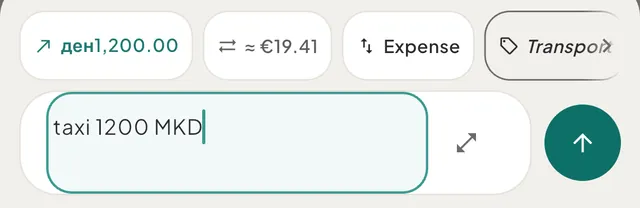
For example, taxi 1200 MKD against "Current account" (EUR), at an example rate of 1 MKD =
0.01626 EUR, charges the wallet €19.51. The entry itself still reads 1,200 denar.
If you type no currency, the entry uses the wallet's currency. A code in capitals, such as MKD,
is always understood. In lowercase it is understood for the 12 first currencies of the app (USD,
EUR, GBP, MKD, JPY, CHF, CAD, AUD, PLN, DKK, NOK and SEK) and for the currencies of your wallets,
your main currency and any you have used. Every other code must be in capitals, so that 12 pen
stays a note about a pen. See everything the capture bar understands.
Record it in the full form
- Open the full form: in the capture bar, with the field empty, tap the round + at its right. Or type your line first and tap the expand icon.
- Enter the amount on the keypad.
- In the row of chips above the keypad, tap the currency chip. It shows the current code. Pick one in the Entry currency sheet: Suggested first, then All currencies, then Crypto.
- When the currency differs from the wallet's, a card appears with the amount Charged to wallet, a label (Live rate, Estimated · nearest date or Manual rate) and the rate, such as "1 MKD = 0.01626 EUR". A line under the amount repeats it.
- Tap Save.
The card has a pencil (Edit rate) for typing your own rate. See use your own exchange rate for one entry.
What you see afterwards
In Activity, the row shows the amount in the currency you typed. A second line starts with ≈
and gives the amount in the wallet's currency. When neither the entry nor the wallet is in your
main currency, it also gives the main-currency value, such as "≈ €19.51 in totals" for
taxi 1200 MKD charged to "Dollar savings". The same lines appear in the entry's details.

Tavala locks the amounts when you save: the wallet is charged the converted amount, and reports and budgets use the main-currency value. A later change in exchange rates does not change them. See how Tavala converts currencies.
If there is no rate
- In the capture bar the conversion chip reads "≈ ? EUR". Saving shows "No rate for MKD yet - finish this one in the form" and opens the full form with your entry in it.
- In the full form the card reads "No rate - tap to enter", and Save stays off until you enter a rate or one arrives. A line above it reads "Add an exchange rate". If only the main-currency rate is missing, you can save, and the form says the entry will not count in totals until a rate arrives.
Good to know
- Any wallet can take any currency. A foreign amount on an existing wallet never needs a new currency on your plan. The free plan limits the currencies your wallets hold (2 per space, Plus holds every currency), not the currencies you spend in.
- Coins work too. Pick one in the Crypto section, or type its code in capitals, such as
0.01 BTC. Prices come from CoinGecko. - Transfers. Moving money between wallets in different currencies shows Recipient gets instead. See move money between your wallets.
- Wrong amount? Edit the entry. Changing the date, the wallet or the currency looks up a new rate. See edit, delete or undo a transaction.
- A converted amount looks off? See a converted amount looks wrong.
Was this helpful?
No opens an email to support with this page’s address. Nothing is recorded here.