
Move money between your wallets
Record a transfer in the full form by picking a From wallet, a To wallet and an amount. A transfer is not spending or income and shows as one row.
On this page
A transfer moves money from one of your wallets to another: cash out of an ATM, money into savings, a
payment to a card. You make it in the full form. The capture bar does not save
a transfer itself, but it recognises a line such as moved 200 to savings and opens the form with the
amount and both wallets filled in (see when the bar asks first). A transfer is not spending and not income, and Activity shows it as one row.
Make a transfer
- Open the full form: open the capture bar (see Add an expense in one line) and, with the field empty, tap the round + at its right.
- Tap the Transfer pill. The category grid is replaced by two rows, From and To.
- Enter the amount on the keypad. It is in the currency of the From wallet.
- Tap From and pick the wallet the money leaves. Tap To and pick the wallet it goes to. The button between the rows (Swap wallets) flips them.
- Change the date or add a note with the chips under the rows if you need to. Est. marks the amount as an estimate.
- Tap Save.
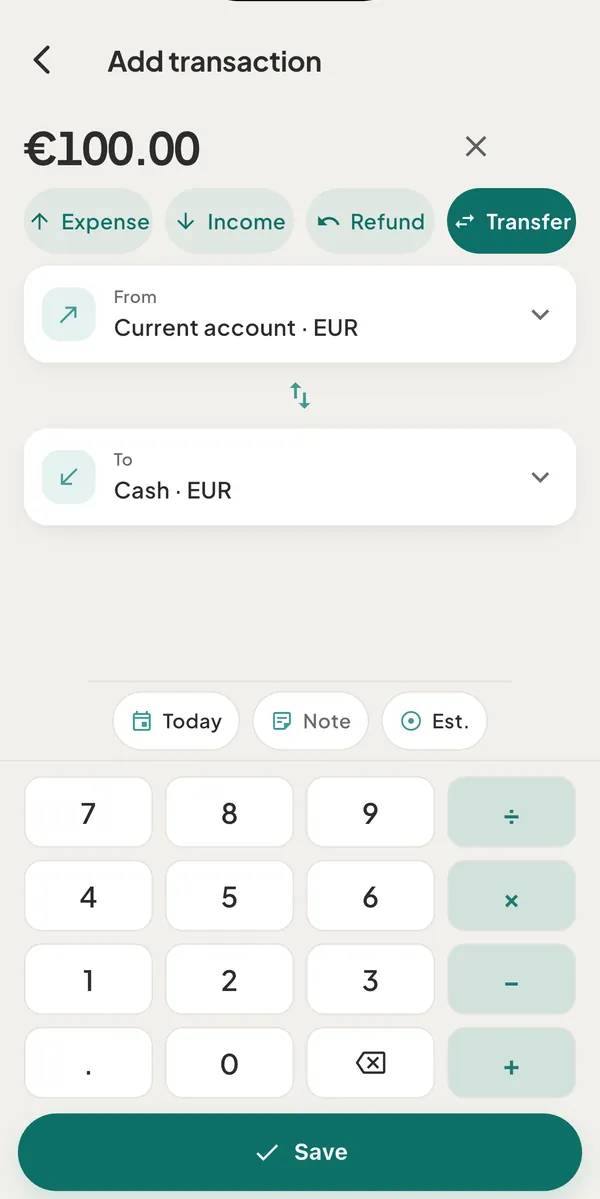
Both wallets must be different. The To list holds every active wallet, including savings goals, debts and lending wallets, so you can move money into them. If Save is greyed out, a line above it says why: "Pick both wallets", "Pick a different destination wallet" or "Add an exchange rate".
When the wallets use different currencies
Enter the amount in the From wallet's currency. A Recipient gets card shows what arrives in the
To wallet's currency, where the rate comes from (Live rate, Estimated · nearest date or
Manual rate) and the rate, such as 1 EUR = 1.1 USD.
- To use your own rate, tap the pencil (Edit rate), enter it and tap Use rate. It applies to this transfer only. The restore icon (Use live rate) goes back to the market rate.
- With no rate known, the card reads "No rate - tap to enter" and Save needs a rate first.
- The amounts are fixed at the transfer's date. See how rates work and use your own exchange rate.
Cash for a trip abroad
When you withdraw cash in another currency, the To list offers + New cash wallet. It opens a sheet, New cash wallet, with a currency and a name (such as "Cash USD"), and the new wallet is picked as To at once. With only one wallet, the form shows "A transfer needs a second wallet to move the money into." with the buttons Add a wallet and New cash wallet.
If a trip is counting today, a transfer into a cash wallet made this way also makes that wallet the trip's Spend-from wallet. A message says so ("Lisbon now spends from Cash USD") with an Undo button. See how trips and projects work.
What a transfer does to your numbers
- Spending and income. A transfer is neither. It does not appear in category totals or budgets.
- Money in and Money out. Moving money between your own wallets counts in neither. Paying a debt from a spending wallet counts as Money out, and borrowing from a debt into a spending wallet counts as Money in, marked as borrowed.
- What's Left. It adds up your spending wallets only. A transfer from a spending wallet into a savings goal lowers it; a transfer out of a goal raises it. A transfer between two spending wallets leaves it unchanged.
Good to know
- Two rows, one entry. A transfer is stored as one row in each wallet. The combined Activity list
shows it once, as Transfer with
From → To; a wallet's own screen shows the side that belongs to it. - Edit and delete. Tap the row to change the amount, wallets, date or note; both sides update. You cannot turn a transfer into an expense or an expense into a transfer. A transfer deleted from Activity disappears from both wallets, and Undo brings back both. See edit, delete or undo a transaction.
- Shortcuts that open this form. On the Money tab, Add money on a savings goal opens it titled Add to goal, Repay on a lending wallet opens Record repayment, and Borrow from this debt opens Record borrowing. The wallet on one side is fixed. A debt's Pay button opens its own payment screen instead: see record a loan payment.
- From a bank. A transfer with an imported side opens read-only ("Imported from your bank - the amount and date are bank facts. A transfer counts once: not spending, not income."), with a Not a transfer? Undo button. See what a connected bank imports.
- Offline. Transfers work with no connection and sync later.
Was this helpful?
No opens an email to support with this page’s address. Nothing is recorded here.