
Edit, delete or undo a transaction
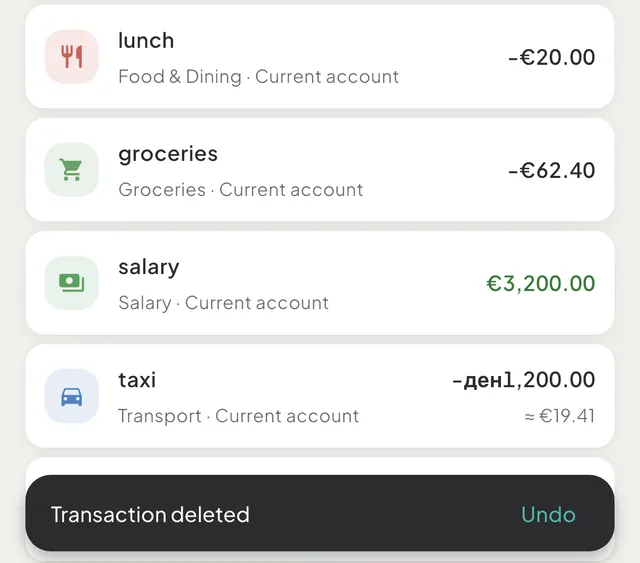
Tap an entry in Activity to change it, swipe it left to delete it, and tap Undo within about 6 seconds to bring it back. Saving has no undo.
On this page
Tap an entry in HomeActivity to change it. To delete it, swipe it left, right-click it, or use Delete in the details pane, then tap Undo in the message that follows if you want it back. Saving an entry has no undo: you correct a saved entry by editing it.
Edit an entry
- Open HomeActivity. To find the entry, use search and filters.
- Tap the entry.
- On a phone, or any narrow window, the full form opens, titled Edit transaction.
- On an iPad in landscape, a Mac or a wide browser window, the entry's details open beside the list. Click Edit to open the form. Right-clicking the row and choosing Open shows the details too.
- Change what is wrong: the amount, the category, the date, the wallet, the currency, the note, Est. or the trip.
- Tap Save changes.
The wallet balance, What's Left, budgets and reports follow the change at once.
Change the type
You can change an expense, an income and a refund into one another. Tap another type pill in the form. Tavala asks first, with a sheet such as Change to income?: "This was saved as an expense. Changing it re-counts it everywhere - spending, budgets and reports - and clears its category." Tap Change to income to go on or Keep as expense to stay. Between Expense and Refund the category is kept; any other change clears it, and you pick a new one.
A transfer cannot change type, and nothing becomes a transfer. A sheet explains it ("A transfer is two linked entries, one in each wallet") and the way around it: delete the entry and add the right kind. See move money between your wallets.
What changes the converted amounts
For an entry in another currency, the converted amounts were fixed on its date. Changing only the note, the category, the trip or the estimate mark keeps them as they are. Changing the amount, the currency, the wallet, the date or the rate fixes them again, at the rate for the date the entry now has.
Entries from a bank
An entry imported from a bank has an Auto tag. Only its category and its trip or project can change. The form says "From your bank: amount, date and wallet are set. The category and the trip or project are yours." and shows no keypad. A settled bank entry also has an It was a transfer button, for cash taken out or a move to savings: it files the entry as a transfer to another wallet. See what a connected bank imports.
Entries with their own sheet
A loan payment, a balance correction and a transfer with an imported side open a sheet instead of the form, with Delete payment, Delete correction or a button that undoes the filing, such as Not a transfer? Undo.
Delete an entry
- Phone or touch screen. Swipe the row to the left, most of the way across. A red bar with a bin icon appears behind it.
- Mac, or an iPad with a trackpad or mouse. Right-click the row and choose Delete.
- Wide window. Click the row, then Delete in the details pane.
There is no Delete button inside the form.
A message at the bottom of the screen reads "Transaction deleted" with an Undo button. It stays for about 6 seconds. Tap Undo and the entry returns, as it was. For other kinds of row the message says "Transfer deleted", "Payment deleted" or "Correction deleted".
Good to know
- Transfers. Deleting a transfer removes it from both wallets, and Undo brings back both.
- Imported entries. Deleting one asks first: "Delete imported transaction?" with Delete and Keep. The bank can send the same entry again later, and it would reappear. To keep it out of your spending, change its category instead.
- Duplicates. If you logged a purchase by hand and the bank later imports the same one, a line under the imported entry reads "Possible duplicate - Merge keeps the bank’s record, with your category and note". Merge combines them ("Merged duplicate", with Undo); Keep both dismisses the line.
- If something fails. "Could not delete" or "Could not undo" means the change did not happen. Try again.
- Keyboard on a wide window. In Activity, Up and Down move between rows, Home and End jump to the first and last, Enter opens the details, and Escape closes the pane.
- Refused changes. A phone that stopped syncing, or a space that is read-only on the free plan, refuses edits and deletes and says why. See devices on the free plan and what each member of a space can do.
- Offline. Edits and deletes work with no connection and sync later.
Was this helpful?
No opens an email to support with this page’s address. Nothing is recorded here.