
Find transactions with search and filters
Search Activity by note, category, wallet or amount, then narrow it by wallet, category, type and dates, and sort by newest, oldest or size.
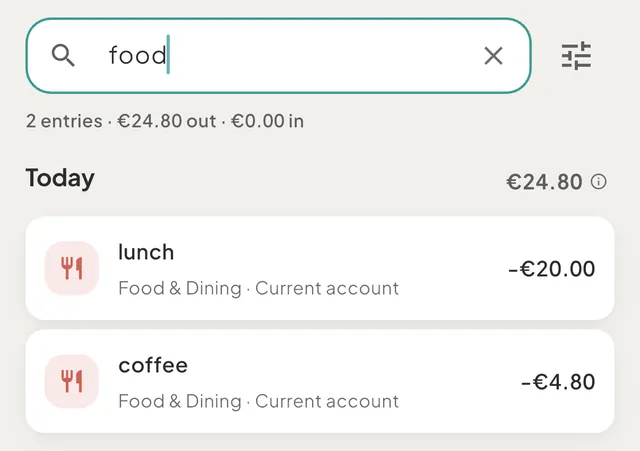
Search lives at the top of HomeActivity. Type a word or an amount to narrow the list, and use the filter button to narrow it by wallet, category, type and dates, or to sort it. A line under the field tells you how many entries matched and what they add up to.
Search
- Open HomeActivity. On a phone, tap Activity at the top of Home. On a wide window, Activity is the list beside Home's overview.
- Tap the field that says "Search notes and amounts" and type.
- The list narrows as you type. The clear button (Clear search) at the right of the field empties it.
With a keyboard on an iPad, a Mac or the web, press Command-F (Ctrl-F on Windows and Android) to jump to the field, from any tab. The menu item is Find in Activity.
What a word matches
Every word you type must match something in the entry, in any order. Capitals and accents are ignored,
so cafe finds "Café". A word matches:
- the note, or for an imported bank entry the merchant's name as Tavala shows it;
- the category name, such as
groceries; - the wallet name, such as
cash(for a transfer, either wallet); - the type words
transfer,refundandbalance correction; - the amount, in the currency the entry was made in.
Amounts match by their digits. 12 finds 12.00 to 12.99, 12.5 finds 12.50 to 12.59, and 12,50 and
1,234.56 work too. A currency sign is ignored. taxi 12 finds taxi entries of 12.00 to 12.99.
Search does not read the date or the name of a trip. Use From and Until in the filters for dates.
The results line
While a search or a filter is on, one line above the list says what came back, in your main currency: for example "8 entries · €269.19 out · €0.00 in", or "1 entry". The out figure is Money out for the matches, net of refunds, and never shows below 0. Hidden amounts hide the figures and keep the count.
Filter and sort
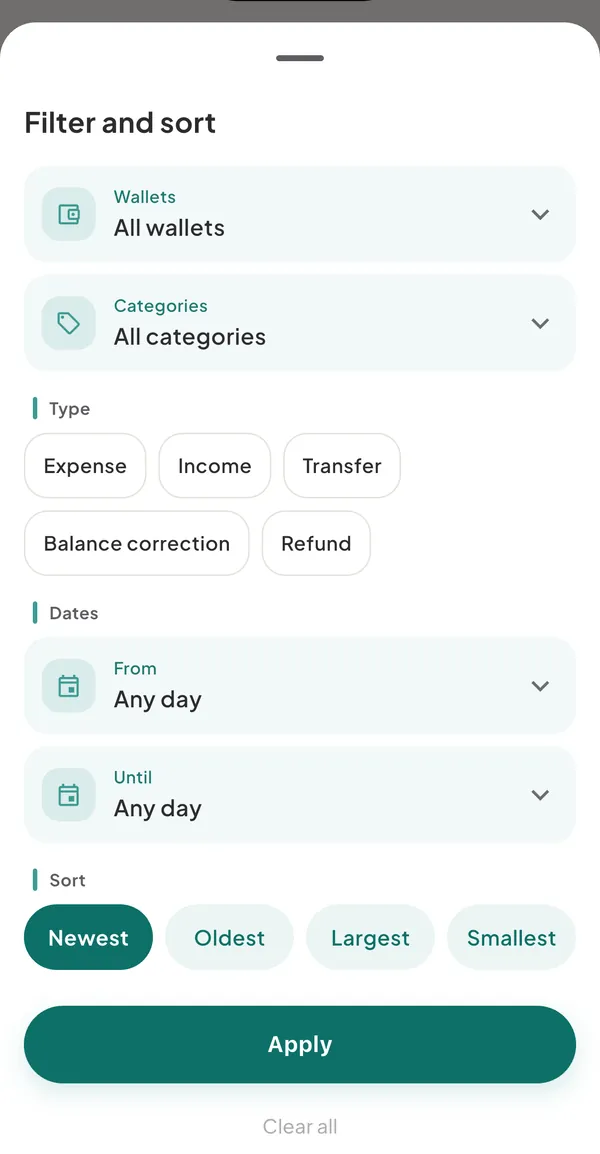
- Tap the filter button next to the search field. Its tooltip reads Filter and sort, or "Filter and sort, 2 on" when filters are set, with a count on the button.
- Choose what to narrow by. Nothing changes until you tap Apply.
- Tap Apply.
| Row | What it does |
|---|---|
| Wallets | Shows "All wallets". Tap to open Add a wallet and pick one; each pick adds a chip you can remove. A transfer matches if either of its wallets is picked |
| Categories | Shows "All categories". Tap to open Add a category. The list includes Uncategorized for entries with no category. It shows your income categories only when the Type filter is Income alone; otherwise your expense categories |
| Type | Expense, Income, Transfer, Balance correction and Refund. Select any combination |
| Dates | From and Until, each "Any day" until you pick a date. Both days are included. The small x clears one |
| Sort | Newest, Oldest, Largest, Smallest |
- Several picks inside one row mean "either": two wallets show entries from either wallet. Different rows all have to match, together with the search words: a wallet, a category and a word narrow the list three ways.
- Largest and Smallest rank by the value in your main currency, and show a flat list without day headers. Entries with no usable value go last.
- Clear all removes every filter at once and keeps the words in the search field.
Active filters appear as chips under the search field: a wallet or category name (or "2 wallets"), the type names, From or Until with the date, and the sort when it is not Newest, such as "Largest first". Tap the x on a chip to remove it.
When nothing matches
The list shows "No entries match" with "Try other words, or clear the search to see every entry." and a Clear search button, which empties the search and all filters.
Good to know
- Searching and filtering do not change anything. They only change what the list shows. The totals on Home are not affected.
- Nothing is saved. Leaving Activity resets the search, the filters and the sort.
- A wallet's own screen has a search too. Open a wallet from the Money tab: its field searches that wallet's entries by text, without filters.
- Reports and exports. For totals by category or month, or a CSV file, use Reports and export a report.
- No bulk actions. You open, edit or delete one entry at a time. See edit, delete or undo a transaction.
- Old entries. Search covers every entry in the space, not only the current month.
Was this helpful?
No opens an email to support with this page’s address. Nothing is recorded here.