
Create, rename and remove categories
Add categories, rename them and change their icon and color in Settings. Removing a category hides it from the pickers; its entries keep it.
On this page
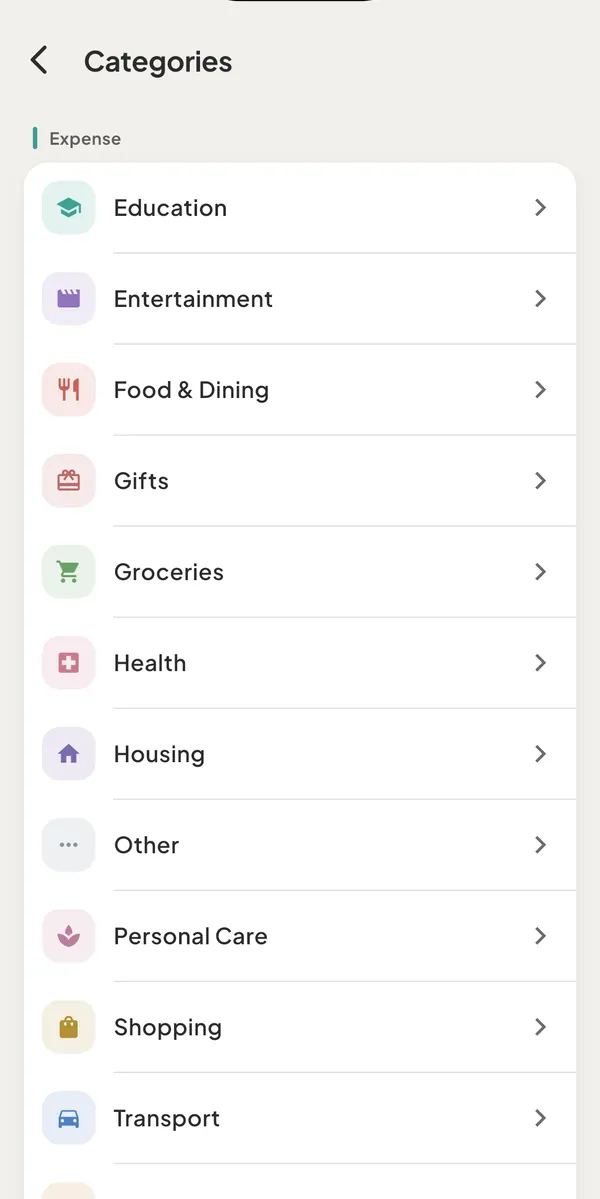
Categories are managed in SettingsMoneyCategories. You can add a category, rename it, change its icon and color, and remove it. Removing hides a category from the pickers but never deletes it: the entries that use it keep it. Tavala has no sub-categories and no way to delete a category for good.
The starter categories
Every new space starts with 18 categories in two sets. A set is chosen by the type of the entry.
| Set | Categories |
|---|---|
| Expense (12) | Food & Dining, Groceries, Transport, Shopping, Entertainment, Health, Housing, Utilities, Education, Personal Care, Gifts, Other |
| Income (6) | Salary, Freelance, Investment, Gift, Refund, Other Income |
Expenses and refunds use the expense set; income uses the income set. The capture bar's built-in words point to these names: see everything the capture bar understands.
Add a category
- Open Settings: on a phone, tap the round person icon at the top right; on an iPad or a Mac, Settings is at the foot of the rail or the sidebar.
- Tap Categories in the Money section.
- Under Expense or Income, tap New expense category or New income category.
- Type the name in Name and tap Create.
The new category gets a default icon and color. To choose your own, tap it and see the next section.
You can also create a category while you record an entry, without leaving it:
- In the full form, tap the dashed New tile at the end of the category grid.
- In the capture bar, tap the category chip, then New. Whatever you typed in the picker's search field is used as the name.
The category is created in the set shown (income categories for an income entry) and selected at once. If you type a name you already have, in any capitals, Tavala selects that category instead of making a copy.
Rename a category or change its icon and color
- Open SettingsMoneyCategories and tap the category.
- In the Edit category sheet, change Name.
- To change the look, tap Icon and color. The row shows the current choice, such as "Car · Blue". In the sheet, pick one of 29 icons and one of 10 colors, then tap Done.
- Tap Save.
The 29 icons are Cutlery, Cart, Car, Bag, Film, Medical cross, House, Lightning, Graduation cap, Lotus, Gift, Dots, Banknotes, Briefcase, Rising line, Round arrow, Piggy bank, Receipt, Percent, Bank, Card, Wallet, Plane, Paw, Dumbbell, Baby, Coffee cup, Phone and Game controller. The 10 colors are Teal, Blue, Indigo, Violet, Pink, Red, Orange, Amber, Green and Slate.
Renaming or recoloring keeps every entry on the category, and everything else that uses it, such as a budget.
- A name cannot be empty ("Give the category a name").
- Two categories of the same set cannot share a name, in any capitals ("You already have a category called Groceries"). An expense category and an income category can share one, such as Gift.
Remove a category and add it back
- Open SettingsMoneyCategories and tap the category.
- Tap Remove from pickers - its entries keep it.
- Confirm in the sheet Remove followed by the name: "It leaves the category pickers. Entries that use it keep it, and you can add it back here." Tap Remove.
The category moves to a Removed section at the bottom of the list. It is no longer offered when you pick a category, and the capture bar never matches it. Entries that used it still show its name in Activity and Reports.
To add it back, tap it in the Removed section (the sheet is titled Removed category) and tap Add back. Creating a category with the name of a removed one does the same: Tavala restores the removed category.
Good to know
- The lists are sorted by name. There is no way to reorder categories.
- One category per entry. An entry has no sub-category and cannot be split across categories. Tap a selected tile in the form to leave the entry without a category; Activity then shows it as Uncategorized.
- The set cannot change. An expense category stays an expense category and an income category stays an income category. To use a name in the other set, create a category there.
- Each space has its own categories. A new space gets the starter set. See spaces.
- Search. The category name is searchable in Activity, and Uncategorized is a choice in the category filter. See find transactions with search and filters.
- Offline. You can manage categories with no connection; they sync later.
Was this helpful?
No opens an email to support with this page’s address. Nothing is recorded here.