
Add or edit a transaction in the full form
The full form sets every detail of an entry - amount on a keypad, type, category, date, wallet, currency, note, an estimate mark and a trip.
The full form is where you set every detail of an entry: the amount, the type, the category, the date, the wallet, the currency, a note, an estimate mark and a trip or project. Use it when one line is not enough, when you want to pick from lists, and to change an entry you saved earlier.
Open the form
- A new, empty form. Open the capture bar (see Add an expense in one line), and with the field empty tap the round + at its right.
- A new form with your words in it. Type a line in the capture bar and tap the expand icon
(Finish in the form). The amount, type, category, note, date, wallet, a currency you typed, the
trip and the estimate mark move into the form. A sum such as
12+8arrives as its result, 20. - An entry you saved. Tap it in HomeActivity. On an iPad in landscape, a Mac or a wide browser window, a tap shows the entry's details beside the list; tap Edit there.
On a phone the form is a full page titled Add transaction, or Edit transaction for a saved entry. On an iPad, a Mac and the web it opens as a dialog over the screen you came from, and Escape closes it. Closing the form without saving discards what you entered, and it does not ask first.
Add a transaction
- Enter the amount on the keypad. The large figure at the top is the amount; the Clear button (an x) next to it empties it.
- Tap the type: Expense, Income, Refund or Transfer. See record income and refunds and move money between your wallets.
- For an expense, an income or a refund, tap a category tile. Tap the selected tile again to take the category off. The last tile, New, creates a category and selects it.
- Check the chips under the grid and change any that is wrong: the date, the wallet, the currency, the note, Est., and the trip or project. They are described below.
- Tap Save.
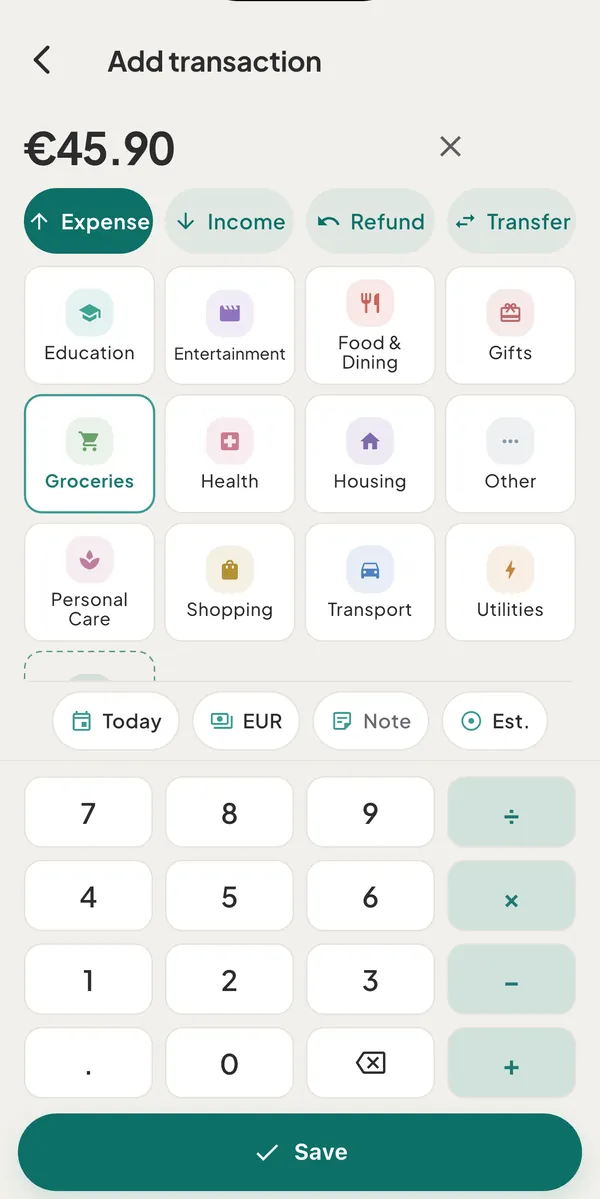
The form closes and the entry appears in Activity on its date, with the wallet balance and What's Left updated at once. If Save is greyed out, a line above it says why: "Pick a wallet", "Pick both wallets", "Pick a different destination wallet" or "Add an exchange rate". With no amount, Save is off and there is no line.
The keypad
The keypad has the digits, a point, backspace and the four operators +, −, × and ÷. The phone's
on-screen keyboard does not open for the amount. With a hardware keyboard (a Mac, a browser, an iPad
or an Android tablet with a keyboard) you can also type it: the number keys, a point or a comma,
+, -, * or x, /, and Backspace do what the keypad's keys do. Keys held with Command, Ctrl
or Option are left to the shortcuts, and while the note sheet is open the keys go to the note.
- Calculations. Type
85/3with the keys and the large figure shows the result while the calculation sits under it. Multiplying and dividing come before adding and subtracting. The result is rounded to the currency's decimal places when you save. - No amount yet. A calculation that ends on an operator, divides by zero or comes to 0 or less gives no amount, so Save stays off.
- Rules of the keys. An operator cannot start the amount. A second operator replaces the first. A number has one point.
- Decimal places. A number takes only as many decimals as the currency has: two for the euro, three for the Bahraini dinar, eight for bitcoin. For yen there is no point key.
The chip row
| Chip | What it does |
|---|---|
| Date | Shows Today, Yesterday or the date. A tap offers Today, Yesterday and Pick a date…. The date picker runs from 2015 to tomorrow, and the time of day stays as it is. Changing the date drops a rate you typed |
| Trip or project | Shows Everyday or the trip's name (for income, Trip or project). It appears when you have a trip or project, and opens the Part of sheet. See put spending on a trip or a project |
| Wallet | Opens the Wallet picker. It shows only when more than one wallet can hold the entry |
| Currency | Shows the entry's currency code and opens Entry currency, with Suggested, All currencies and Crypto |
| Note | Shows Note, or the text of the note. A tap opens a field, Note (optional), and Done |
| Est. | Marks the amount as an estimate. The entry then shows an Estimated tag in Activity. See log a rough amount |
A transfer has no wallet or currency chip. It has From and To rows instead.
A currency other than the wallet's
When the entry's currency differs from the wallet's, a line under the amount shows the converted figure,
the rate's source (Live rate, Estimated · nearest date or Manual rate) and the rate, for example
1 USD = 0.9 EUR. The Charged to wallet card repeats it.
- Tap the line, or the pencil on the card (Edit rate), to enter your own rate. The sheet is titled
like
Rate · 1 USD = ? EUR; enter the rate and tap Use rate, or Cancel. - A rate you enter applies to this entry only. It never changes other entries or the market rate. Once you have entered one, the restore icon (Use live rate) goes back to the market rate.
- With no rate known, the card reads "No rate - tap to enter" and Save needs a rate first.
- When the entry is in neither the wallet's currency nor your main currency, the line also says what the
totals will count, as
≈ … in totals.
See record spending in another currency and use your own exchange rate.
Good to know
- Only the amount is required. Without a category the entry saves as Uncategorized. An entry has one category; there is no split across categories.
- Which wallets are offered. An expense, income or refund goes to a spending wallet, or to a debt wallet such as a credit card you track as a debt. Savings goals and lending wallets receive money through transfers. The capture bar offers spending wallets only.
- The first wallet. A new form starts on the first wallet in your list that can hold the entry, or on the wallet a running trip spends from. Opened from the capture bar, it starts on the wallet chosen there.
- Locked amounts. The converted amounts are fixed at the entry's date. Changing only a note, a category or a trip never re-rates an entry.
- Refused saves. If a save fails, a message names the reason and the form stays open. Examples are a phone that stopped syncing ("This phone stopped syncing. Move syncing here to make changes.") or a space that is read-only on the free plan. See devices on the free plan.
- Imported bank entries can change only their category and trip. See edit, delete or undo a transaction.
- Offline. The form works with no connection, and the entry syncs when you are back online.
Was this helpful?
No opens an email to support with this page’s address. Nothing is recorded here.