
Create an account to back up and sync
Create a free Tavala account with an email and a password, confirm it with an 8-digit emailed code, and your data is backed up and syncing.
A Tavala account is an email address and a password. You confirm the address with an 8-digit code that Tavala emails you, and from then on your data is backed up and syncs. Everything you have already entered on this device comes with you.
Create the account
- Open the sign-up form. Either:
- tap Create account in the banner on Home, or
- open Settings and tap Create account on the Guest card. On a phone, Settings is the round person icon at the top right. On an iPad or a Mac it is at the foot of the rail or the sidebar.
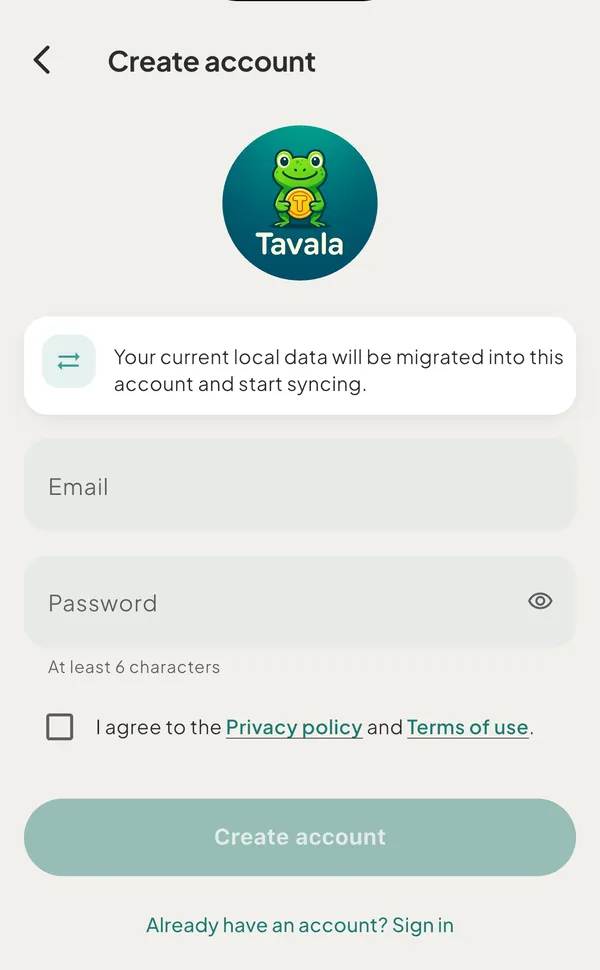
- Enter your Email.
- Enter a Password of at least 6 characters. The eye icon shows or hides what you type.
- Tick I agree to the Privacy policy and Terms of use. Both are links that open in your browser.
- Tap Create account. The button stays off until the email contains an "@", the password has 6 or more characters and the box is ticked.
- Open the email from Tavala, copy the 8-digit code, and enter it on the Confirm your email screen. A code you paste in full is submitted by itself. If you type it, tap Verify once all 8 digits are in.
- Home opens with a banner: "Your data is now backed up and syncing across your devices." Tap the x to dismiss it.
What happens to the data on this device
The form says it before you start: "Your current local data will be migrated into this account and start syncing."
- If you have used Tavala on this device (an entry, a wallet with a balance, a budget, a bill, a trip or a goal), that space becomes yours in the account and uploads.
- If you only opened the app and changed nothing, the empty starter space is not copied, so a second device does not collect empty spaces.
- None of your entries is removed by creating an account.
Good to know
- Email and password only. There is no Apple or Google sign-in. You can add a passkey later to sign in without typing the password.
- The account is free. The free plan syncs one device at a time; see devices on the free plan.
- You already have an account. If the email is registered, the form switches to Sign in, keeps your email and says "You already have an account with this email - try Sign in." No code is sent.
- The code does not arrive. Tap Resend code. It counts down "Resend code in 30s" between sends. Check that the address on the screen is the one you typed. More in I did not get the email code.
- The code is wrong or old. The screen says "That code didn’t work - check it or tap Resend." or "That code has expired - tap Resend to get a new one." Use the newest email.
- You are offline. The screen says "You appear to be offline. Check your connection and try again." Creating an account needs a connection; the rest of Tavala does not.
- No screen to change the email later. Tavala has no setting for changing the address of an account, so use one you will keep.
- Changing your mind. You can keep using Tavala as a guest. See use Tavala without an account.
Was this helpful?
No opens an email to support with this page’s address. Nothing is recorded here.