
Set a monthly budget
Open the Budgets tab, pick Everything or one category, enter a monthly limit and tap Add budget. Budgets count everyday spending in your main currency.
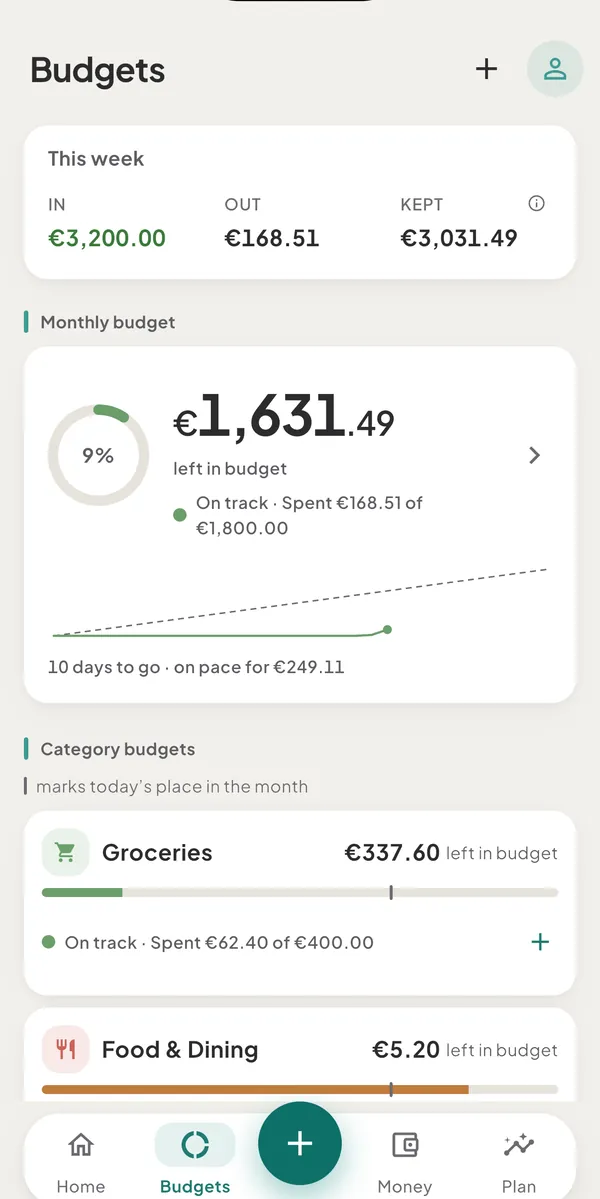
A budget is a monthly limit. You can set one for everything you spend (the total budget) and one for each expense category, and Tavala shows how much of each is left. Budgets are the same on the free plan and on Plus.
Set a budget
- Open the Budgets tab. On a phone it is in the bottom bar. On an iPad, a Mac or a wide browser window it is in the rail or the sidebar.
- Start the budget:
- For a total budget, tap Set a monthly budget under Monthly budget.
- For one category, tap Add a category budget under Category budgets.
- The + at the top right (Add budget) opens the same form with nothing chosen.
- On New budget, under Budget for, pick Everything (total) or a category. The grid offers only expense categories that do not have a budget yet. Everything (total) is there until you have a total budget. The New tile at the end creates a category without leaving the form.
- Enter the Monthly limit. It is in your space's main currency, which the helper line under the field names.
- Tap Add budget.
What a budget counts
- One calendar month at a time. Every month starts at zero. There is no rollover: money left over in March does not add to April, and an overspend does not carry forward.
- Everyday spending only. Anything that belongs to a trip or project is outside every budget. Each budget screen names what it leaves out, for example "Lisbon €180.00 outside budgets".
- Net of refunds. A refund lowers the category it came from. If refunds exceed spending in a month, the line reads "Spent €0.00 of €400.00, incl. €15.00 refunded". It never shows a negative spend.
- Locked amounts. An entry in another currency counts at the converted amount saved with that entry, so a past month does not shift when rates move.
- By the entry's date. A backdated entry counts in the month it is dated.
- Card spending counts when you buy. A purchase on a credit card wallet counts against the budget on the day of the purchase, not when you pay the card.
The total budget counts every everyday expense, including those with no category or in a category that has no budget of its own. Category budgets do not have to add up to the total.
Change or remove a budget
- Change the limit: tap the monthly budget card or a category row, change Monthly limit and tap Save changes. Budget for cannot be changed. To move a budget to another category, delete it and add a new one.
- Delete: open the budget and tap Delete budget, or swipe a category row to the left. The message Budget deleted has an Undo button.
- Log into a category: the + at the end of a category row (Log into the category name) opens the capture bar with that category already chosen. On an iPad or a Mac with a pointer, right-click the row for Log into and Edit.
Good to know
- Monthly only. There are no weekly or yearly budgets, and no separate currency per budget.
- No budget notification. Tavala sends no reminder or alert about budgets. The one cue is a single stronger vibration when you save a new expense in the full form that moves a budget into a worse state, such as from On track to Getting close. Edits, trip entries and the capture bar do not trigger it.
- Each space has its own budgets. A shared space shows the budgets of that space, in its main currency.
- Duplicates. If two devices create the same budget while offline, the older one counts. The extra shows as Duplicate budget with "Not counted - swipe to remove".
- Home. The budget card on HomeOverview shows what is left in budgets, or over budget, and opens the Budgets tab. See what the budget words and colours mean.
Was this helpful?
No opens an email to support with this page’s address. Nothing is recorded here.