
Add a wallet
Add a cash, bank, card or e-wallet wallet from the Money tab with a name, an opening balance and a currency. The currency cannot be changed later.
A wallet is a place your money lives: a bank account, cash, a card or an e-wallet. You add one from the Money tab with a name, a type, an opening balance and a currency. The name, the type and the look can be edited later. The currency cannot.
Add a wallet
- Open the Money tab.
- Tap + at the top right. In the sheet Track something new, tap Wallet.
- Type a Wallet name. If you leave it empty, the wallet is named after its type, such as "Cash".
- Pick a type: Cash, Bank, Card or E-wallet. See wallet types.
- Optional: tap Icon and color to give the wallet its own icon and colour. They show on its card, in its register and in wallet pickers.
- Enter the Opening balance, the amount in the wallet now. Leave it empty for 0. The field takes no minus sign, and only as many decimals as the currency has.
- Check the Currency. It starts as your main currency. Tap the row to pick another.
- Tap Add wallet.
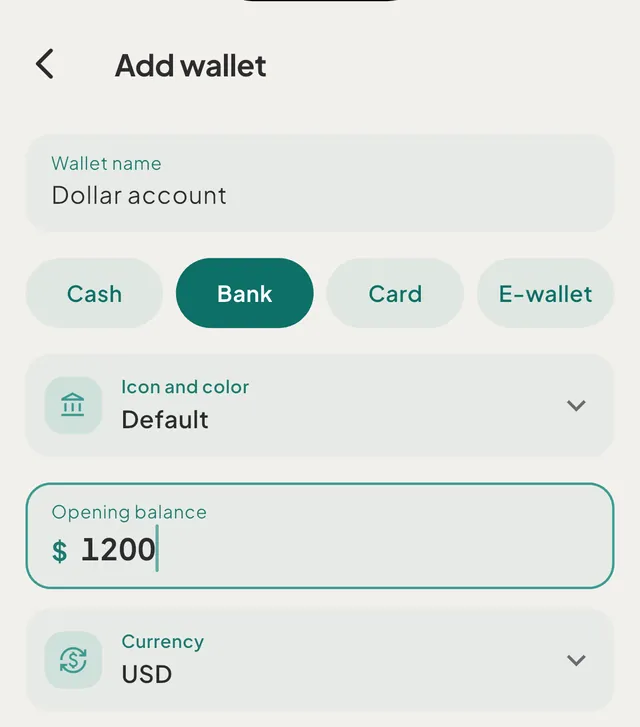
If the balance is not a number, the field says "Enter an amount like 0.00". The new wallet's opening balance counts toward What's Left at once.
Your first wallet
The first time you open Tavala, the screen Where does your money live? asks for the same things: Wallet name, a type, Current balance and Currency. Tap Continue to save.
The currency you pick there also becomes your main currency, the one everything is added up and shown in. You can change it later; see choose or change your main currency. If you already have an account on another device, tap Already have an account? Sign in instead of making a wallet.
Choose a currency
The picker is a sheet with a search field ("Code, name or country"). It lists Suggested currencies first (the ones you already use and your region's), then All currencies, then Crypto. In the Add wallet form a wallet can be in a coin, which you update by hand, for example a hardware wallet. The first-wallet screen offers regular currencies only. The full list is in supported currencies.
On the free plan a space holds 2 currencies, counted from its wallets. Plus holds every currency. Adding a wallet in a currency the space already holds is always fine. Adding one in a third currency opens the Plus sheet, which names the two currencies the space holds.
Edit a wallet
- On the Money tab, tap the wallet to open its register.
- Tap the pencil at the top right (Edit wallet).
- Change the name, the type or the icon and colour, then tap Save changes.
The Currency row is greyed out in the editor. Once a wallet has any entries, the balance field is read-only and reads Balance, with a note that the balance is the sum of the wallet's entries. To correct it, use Update balance… in the same screen; see update a balance that does not match.
Good to know
- A wallet holds one currency. You can still record spending in other currencies against it; see record spending in another currency.
- There is no way to delete a wallet. You can archive it; see archive a wallet you no longer use.
- A wallet in the wrong currency has to be replaced: add a new wallet in the right currency and archive the old one. Entries can be moved one at a time by changing the wallet in the full form.
- Savings goals, debts and money you lent are added from the same + sheet, with their own forms. See wallet types.
- The wallet chip in the capture bar appears once you have more than one spending wallet.
Was this helpful?
No opens an email to support with this page’s address. Nothing is recorded here.