
Add a bill or a recurring payment
Create a rule for rent, a subscription or your salary, choose how often it repeats, and let Tavala post it on schedule or ask you to confirm each one.
A bill, a subscription or a regular income is a recurring rule: an amount, a wallet, a schedule and a name. Tavala posts each occurrence as an ordinary transaction on its due date, or asks you to confirm it first. Rules work offline and are the same on the free plan and on Plus.
Add a rule
- Open Recurring:
- On a phone, tap the round person icon at the top right, then SettingsMoneyRecurring & bills. You can also tap the bills card on HomeOverview.
- On an iPad, a Mac or the web in a wide window, choose Recurring in the sidebar, or press Command-6 (Ctrl-6 on Windows and Android).
- Tap + (New recurring rule). On an empty screen the button reads New recurring rule.
- Optional: tap a Quick start chip (Rent, Subscription, Utilities or Salary). It sets the type, a monthly schedule, a matching category if you have one, and the name.
- Choose Expense, Income or Transfer.
- Enter the Amount. Currency follows the wallet unless you change it. Pick a Category and a Wallet. A transfer asks for a From wallet and a To wallet, and they must be different.
- Type a Name, such as "Rent, Netflix, Salary…". It is the name in the lists and in reminders, and it becomes the note on every posted transaction.
- Under Schedule, set Repeat every a number of days, weeks, months or years, and the date under Starts on.
- Under When does it end? choose Never, On a date (Last day) or A set number (Number of times).
- Decide Add automatically:
- On: "Posts on schedule, even after time away."
- Off: "You'll confirm each one before it's added."
- Tap Add recurring.
Examples: rent is Expense, €950, Repeat every 1 month, starting on the 1st. A salary is Income, €3,200, every 1 month. A fortnightly payment is every 2 weeks. A quarterly one is every 3 months.
What happens when a rule is due
- Automatic rules post as normal transactions dated on the due day. Amounts in another currency are locked at that day's rate. If no rate is available, the rule stays due and tries again the next time.
- Confirm-first rules appear under Waiting for you with the due date ("Today", "Tomorrow", "In 5d", "Overdue 3d") and two buttons: Post adds it, Skip moves on without adding it. Both show a message with Undo. If several are waiting, the card says "+2 more" and you work through them one at a time.
- Posting happens when you open the app. Tavala catches up on launch, when you return to the app and when you switch space. A banner on Home says "Rent posted while you were away." with Review. It does not post while the app is closed.
- Paying a loan or a card. A transfer rule into a debt wallet is split when it posts, into interest and principal. See record a loan payment.
Manage your rules
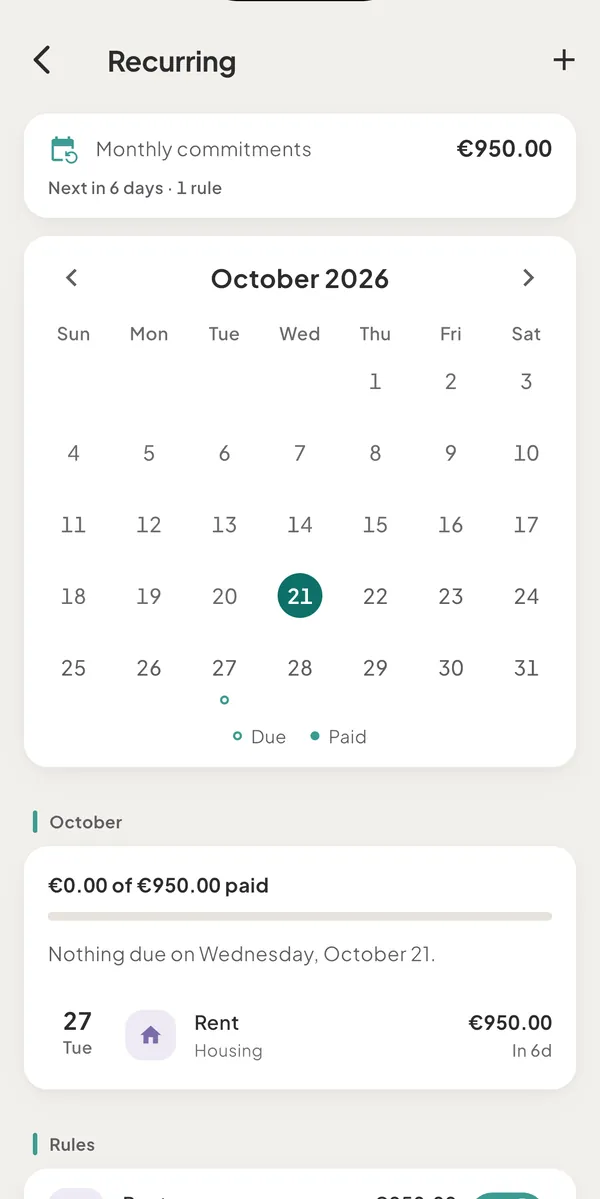
- See what is coming. The calendar marks due days with dots: a ring is due, a filled dot is paid, and income and overdue days have their own dots. Under the calendar, the month's items are listed by day, with Paid, Not posted or Due today beside each. Tap a day to mark it in that list.
- Pause. Use the switch on a rule's row. A paused rule shows Paused and posts nothing. When you switch it back on, it carries on from the next scheduled date and does not post the days it was paused.
- Edit. Tap the rule, change it and tap Save changes. Saving moves the next date to the first scheduled date on or after today. On a confirm-first rule it also clears the items waiting ("Saving will clear 2 items waiting for you to confirm.").
- Delete. Tap Delete rule (keeps posted history) in the editor, or swipe the row to the left. Transactions already posted stay. The message Recurring rule deleted has Undo.
- Finished rules. A rule that reached its end date or count shows Done.
Good to know
- Subscriptions are rules. There is no separate subscriptions screen. A subscription is an expense rule, and it appears in the calendar, in safe to spend and in the forecast like any bill.
- A new rule cannot start in the past. The date picker begins today. To record earlier payments, add them as transactions.
- Month ends. A rule that starts on the 29th, 30th or 31st runs on the last day of shorter months and returns to its day afterwards. Starting on the 31st reads "Monthly on the last day".
- Bills from your bank. With a connected bank, a steady stream of payments to one merchant appears under Found in your bank. Add creates a rule that never posts on its own, because the bank import brings in each payment. Not a bill hides the suggestion on this device. A bank rule whose payment is more than 4 days late reads "Expected 12 Oct, not in your bank yet".
- Budgets. Posted occurrences count in their category budget like any expense.
Was this helpful?
No opens an email to support with this page’s address. Nothing is recorded here.