
The Money tab and your net worth
The Money tab shows your net worth, this month's Money in and Money out, and every wallet, goal, debt and loan. See how each figure is worked out.
On this page
The Money tab is the whole picture of what you own and owe. Its top card shows your net worth (everything you own minus everything you owe), and below it sit your wallets, savings goals, debts and loans. Home answers a smaller question: What's Left is the money in your spending wallets.
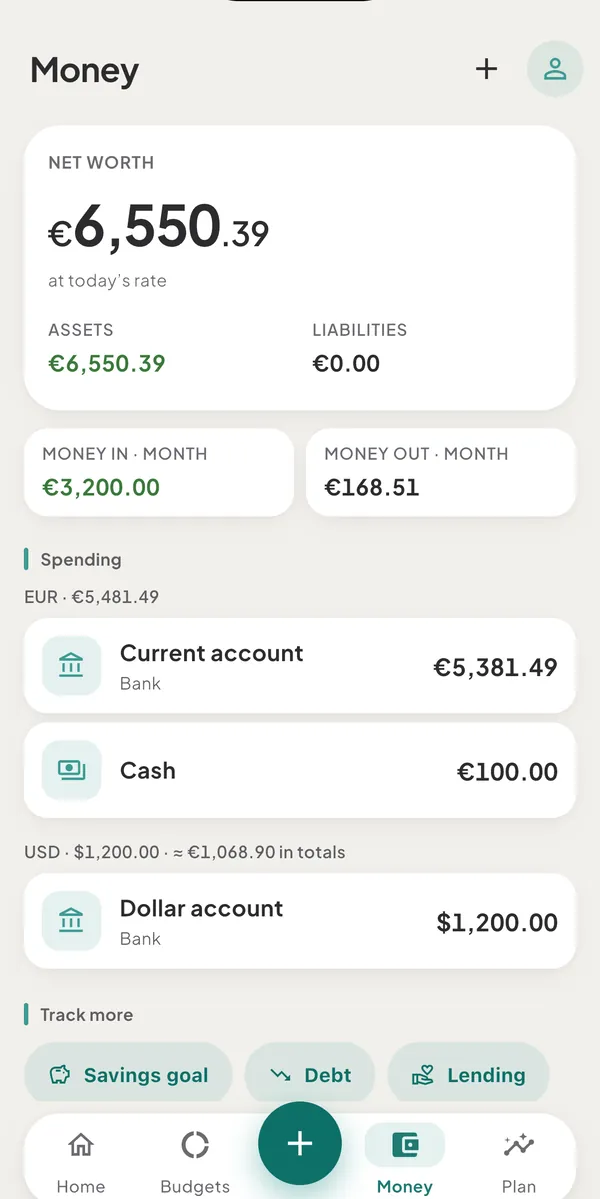
What the tab shows
From the top:
- NET WORTH is assets minus liabilities, in your main currency. Assets are every wallet that is not a debt: spending wallets, savings goals, lending and investments. Liabilities are your debts. A negative net worth is shown as a plain minus, not as a warning. When your wallets span more than one currency, "at today’s rate" appears under the figure.
- Assets and Liabilities sit under it as two figures.
- Money in · month and Money out · month show the cash that came into and left your own wallets this month. Moving money between your wallets does not count. A line under them reads "Includes €30.00 pending · €500.00 borrowed" when part of the figure is a bank hold or borrowed money. The pair is hidden when both are 0.
- Spending lists your Cash, Bank, Card and E-wallet wallets.
- Savings goals, Debts, Lending and Investments each appear once you have at least one. Until then, the roles you have not started are chips under Track more.
Tap + at the top right to open Track something new and add a wallet, goal, debt, lending, a debt import or a trip or project. On an iPad, a Mac or a wide browser window the tab lays out in two columns.
Spending wallets in several currencies
When you hold spending wallets in more than one currency, each currency gets a line above its wallets: the code, the subtotal and what it counts as in your totals. For example, with a euro main currency:
EUR · €1,240.00USD · $500.00 · ≈ €455.00 in totals
The amounts are examples. When a currency has several wallets, each foreign card also shows its value in your main currency under the figure; hover over it, or press and hold, to see the rate and its date. A currency with no rate shows no "≈" part.
Open a wallet
Tap a card to open the wallet's register: its balance, a line of the balance over time with 1M, 3M, 6M, 1Y and All ranges, an Update balance button, a search field for its entries, and the entries by day. The first entry at the bottom is Opening balance. The line appears after three entries. For a debt the balance reads You owe.
To change a wallet, tap the pencil in the register (Edit wallet). To archive one, swipe its card to the left. While anything is archived, an Archived row at the foot of the tab opens the list, where you can bring one back. See archive a wallet you no longer use.
How the figures are worked out
- Balances use today's rate. Net worth converts each wallet into your main currency at today's rate every time you look, so it moves when rates move. Spending, income and budgets use the amount locked when the entry was saved. See how rates work.
- Archived wallets are left out. Their entries stay in your history.
- A currency with no rate yet is left out of the Assets, Liabilities and net worth figures on this tab. Home's What's Left lists such amounts separately, for example "+ 0.5 BTC in other wallets".
- What's Left is not net worth. What's Left adds up spending wallets only. See what the numbers mean.
- Hidden amounts. With amounts hidden, figures become dots and captions drop their figures. See hide amounts on screen.
Good to know
- Wallets keep the order you created them in. There is no reordering.
- Investments are read-only cards. They show "Value as of" a date, or "Tracks the balance only", and have no button.
- Loading. The tab shows placeholder rows until balances load, so a figure of 0 means 0.
Was this helpful?
No opens an email to support with this page’s address. Nothing is recorded here.