
Hide amounts on screen
Tap the eye on the Home card to replace every amount in the app with dots, then tap it again to bring them back. The choice stays on this device.
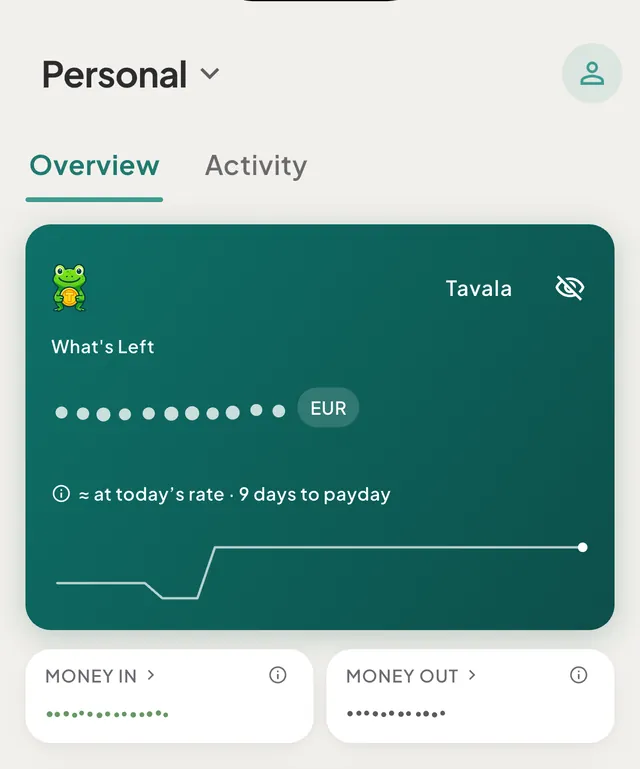
Hidden amounts replace every figure in Tavala with a row of dots, so you can open the app on a train or at a table without showing your balance. One tap on the eye hides them, and one tap brings them back.
Hide and show amounts
- Open Home.
- Tap the eye icon on the balance card at the top. Its label is "Hide amounts".
- The first time, a sheet titled Amounts hidden says where the choice applies and how to undo it. Tap OK.
- Every amount in the app now shows as dots of the same width.
- To bring them back, tap the eye again. Its label is now "Show amounts".
On a Mac, an iPad with a keyboard or a wide browser window, there is also a shortcut: ViewHide Amounts in the Mac menu bar, or Shift-Command-H (Shift-Ctrl-H on Windows and Linux keyboards). The menu item changes to Show Amounts while amounts are hidden. See keyboard shortcuts.
What is hidden
- Balances, totals and every amount in a list: Home, Activity, Budgets, Money, Plan, Reports, debts, trips and recurring rules.
- Sentences that carry a figure leave the figure out. The Home facts line keeps the number of days and drops "about" followed by a daily amount.
- Screen readers read "Amount hidden" instead of the figure.
What stays visible
- Forms and sheets where you type or confirm an amount still show it: the transaction form, the capture bar, Update balance, payments and the calculators.
- Exports are not changed. A CSV or PDF report, and the JSON export of your data, contain the real amounts.
- The home screen widget is not changed. It shows today's and this month's spending as usual.
Good to know
- The choice stays on this device. It is not synced and not exported, so hiding amounts on your phone does not hide them on your Mac.
- Signing out shows amounts again. It resets to shown.
- It is not a lock. Anyone holding your unlocked phone can tap the eye. For a check before the app opens, use the app lock.
- The eye is on Home. The choice then applies across the whole app.
Was this helpful?
No opens an email to support with this page’s address. Nothing is recorded here.